Bar Chart
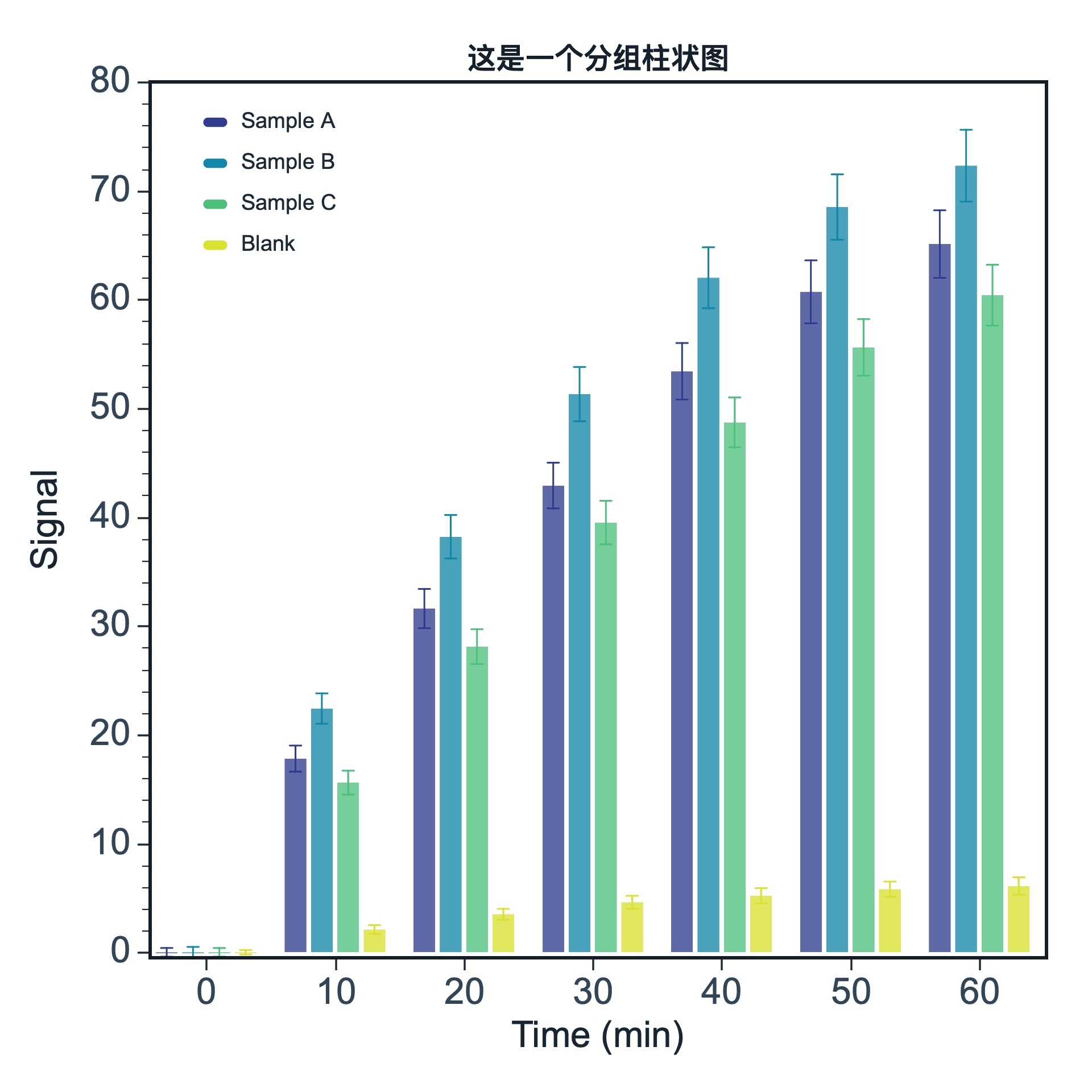 Bar Chart
Step 1Choose range and output
Use the current selection or the full table. Output decides whether to create a new figure or add to an existing one.
Data Range
Current selection: all rows, Cost
Full table: 88 rows, 3 columns
Output
New figure
Add to existing figure
X column: Column 1⌄
Column 2 · Y⌄
Normal Bar Chart
One-level comparison: one category column plus one Y value column. Choose None when no error data is available.
Step 3Grouped Bar Chart
Outer group controls X-axis groups; inner category controls bars inside each group.
X column: Column 1⌄
Y column titles⌄
Column 2 · Y⌄
Row IndexUse table row numbers as categories when no category column exists.
X columnUse the column marked as X for categories, such as wavelength, time, or sample ID.
Text columnUse a text column as category names, such as samples, groups, or condition labels.
Y column titlesUse multiple Y-column titles as inner categories for wide-format data.
Step 4Understand grouping options
Grouped bar dropdowns can use row numbers or Y-column titles, not only regular data columns.
Tip: add multiple normal bar charts to an existing figure to merge them into a grouped bar chart.
Adjustable settings
These are the common settings for this plot type. For detailed line, marker, axis, legend, and font styling, see Styling.
- Normal bar chart
- Grouped bar chart
- Category column
- Y value column
- Error bars
- Bar and axis styling
Styling →