Complete one data-processing or analysis sequence normally. SmartPlot records successful steps for review, saving, and mapping to compatible new data.
“Record workflow” is not screen recordingSmartPlot does not record your screen, video, or audio. It stores methods, parameters, and step relationships only after an operation succeeds.
Step 1
Open Workflow Templates and start recording steps
Open Workflow Templates from the top Templates menu and choose Start Recording. Then process the first dataset normally.
WORKFLOW TEMPLATES
Record a New Processing Workflow
V1.85 · Plus
Process the first series normally; SmartPlot will capture only operations and parameters.
Steps onlyNo screen, video, or audio recording
Recording · 4 steps captured
1Filter missing valuesCaptured after success
2Group summary · Mean / SDCaptured after success
3Create a bar chartCaptured after success
4Holm-adjusted significanceCaptured after success
Step 2
Complete one real data-processing workflow
SmartPlot records supported methods and parameters only after an operation succeeds. Failed, cancelled, or unsupported actions are not added.
Step 3
Review, name, and save
Stop from the recording status, review step order and parameters, then name the workflow and save it to the local template library.
REVIEW RECORDED STEPS
Grouped Analysis Workflow
4 steps
Step 4
Choose datasets and X–Y relationships, then confirm
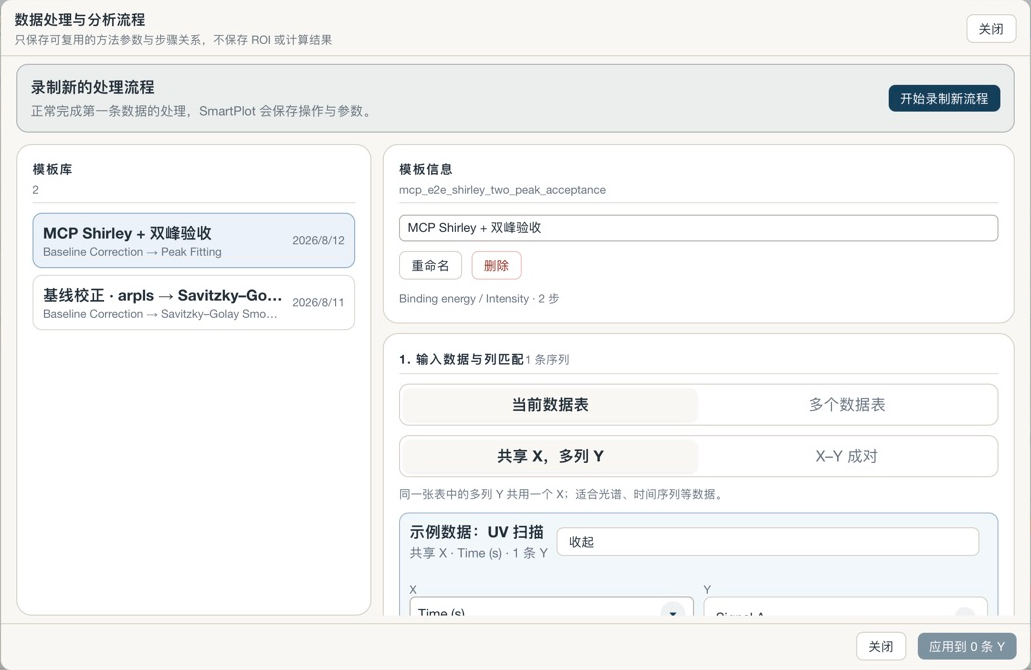
Choose the current dataset or multiple datasets. Select Shared X with Multiple Y or X–Y Pairs, explicitly choose X and Y for each dataset, then review workflow steps and outputs before applying to the selected Y series.
Templates store operation order, methods, parameters, and step relationships—not screen, video, audio, data rows, ROIs, manual peak positions, or analysis results.
Before you apply a template
Confirm that the new data contains the X and Y columns required by the workflow.
Choose the current dataset or multiple datasets and review the X/Y selections for each.
Select Shared X with Multiple Y or X–Y Pairs to match the data structure.
Preview the workflow steps and outputs before applying to the selected Y series.