Read the active workspace
Read status, a privacy-safe project summary, table structure, and current figure styles without exposing raw data, file paths, or internal IDs.

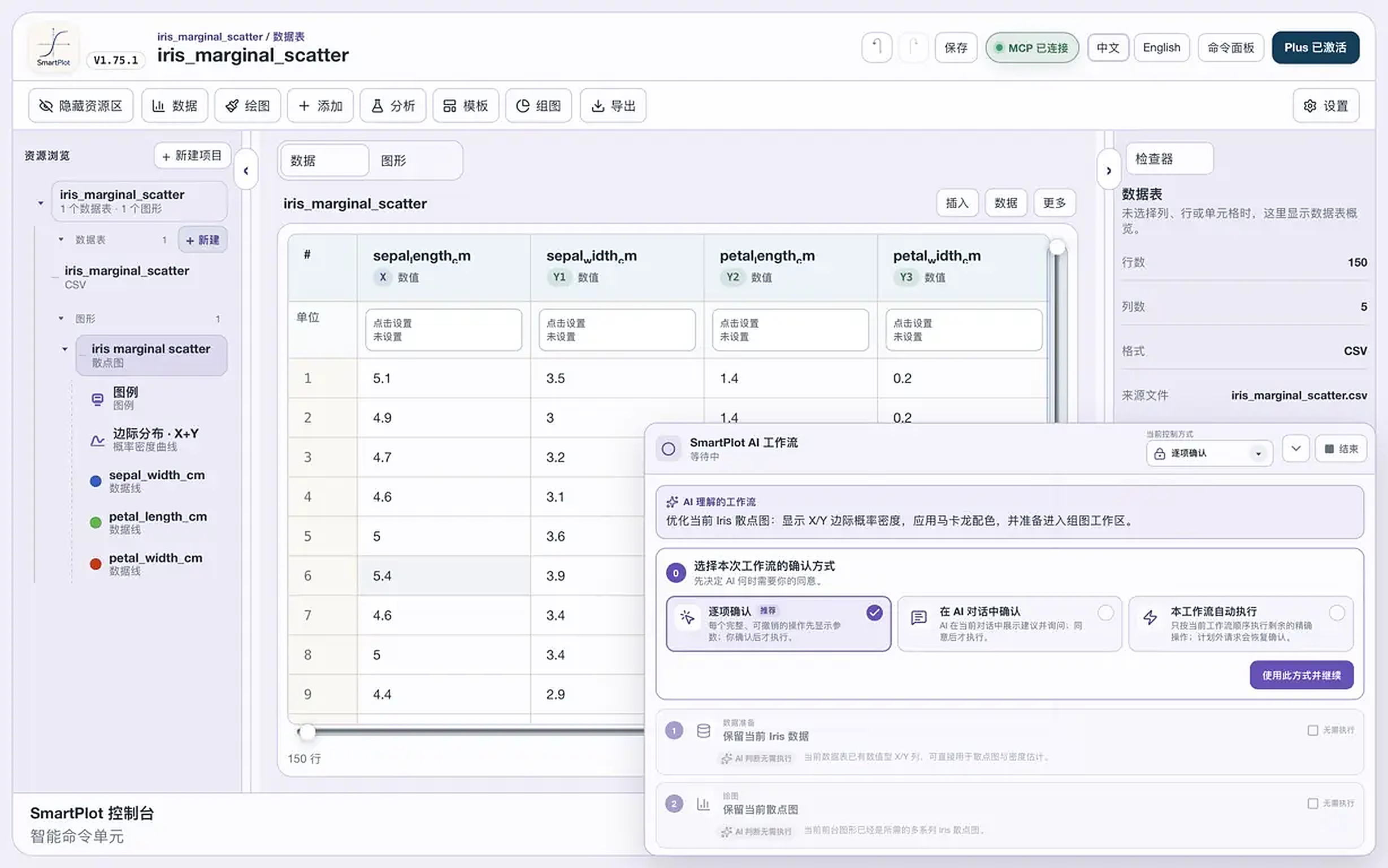
Let compatible AI clients understand the active workspace, propose a complete plan, and ask before every reversible action. The demo below shows the full journey from request to plan.
SmartPlot detects the MCP connector shipped with the app. The page never exposes a personal folder path; copy either a terminal command or a safe AI setup prompt from Settings.
Keep the target project in the foreground. MCP only reads and operates on the active workspace.
For the first connection, open Settings → AI & MCP and copy either the terminal command or the safe setup prompt for your AI client.
Submit a plotting request. Once connected, the SmartPlot header displays “MCP connected”.
Start a new task in your AI client or reload MCP. You do not need to restart SmartPlot, and previously connected clients can go straight to the next task.
Check numeric columns, grouping information, and the current workspace.
Map X and Y while preserving the real data range and point distribution.
Add kernel-density estimates along X and Y to show marginal distributions.
Use a translucent pastel palette with clear visual hierarchy.
This demo only shows plan generation. It does not change any data or figures.
Read-only capabilities return only the privacy-safe structure needed for the task. Controlled actions require foreground approval or authorization for the active workflow. These are product capabilities, not background scripts detached from the interface.
Read status, a privacy-safe project summary, table structure, and current figure styles without exposing raw data, file paths, or internal IDs.
Organize a plan across data preparation, plotting, analysis, appearance, and composition, then let you choose how to approve it.
Sort, filter, clean, normalize, calculate columns, fill missing values, remove duplicates, and convert display units or numeric values.
Create figures through SmartPlot’s available entry points, including line, scatter, bubble, error-bar, column, dual-Y, heatmap, radar, Venn, volcano, histogram, and box plots.
Adjust color, opacity, line weight, dash style, markers, and complete palettes. Plans remain editable in the docked SmartPlot panel.
Use available smoothing, baseline, normalization, trend or peak fitting, integration, derivatives, distribution fitting, significance, and marginal distributions.
Add annotations and range highlights, reorder selected objects, and continue into the figure composer.
MCP can only operate objects in the active project. Changes appear immediately and enter undo history; switching projects, disconnecting, or quitting SmartPlot ends the workflow authorization.
This capture comes from a real SmartPlot MCP connection. The page uses a 2× PNG enhancement and provides a direct full-size view to avoid another lossy encode.
Download SmartPlot, open a project, then connect a compatible AI client using the setup shown in Settings.